Showing posts with label iPad. Show all posts

Thursday, 30 May 2019

Beach Ball Throw - Taskmaster

For the past four years, we've used the 'Backwards Video Task' as a team building task at the start of each year. It gets children working together and produces some imaginative and impressive outcomes. 


In the most recent series of Taskmaster, the contestants were given another video task I can see working well in the classroom. The contestants were given a beach ball and asked to film themselves in one location throwing the ball out of shot and then later film them self catching the ball in a new location. The winner of the task was the person who 'threw' the ball over the largest total distance. In school, I'd be looking for the group to ensure consistency by linking the throws and filming to make each throw and catch look authentic. 


Going to give it a go in September. We'll see what the children come up with! There's a planning sheet here that may be useful.

Friday, 15 March 2019

Bonza Vocabulary

A few weeks ago, I came across an app. Bonza is its name. Cheers Alex for the Tweet about it. So, it's a word game. The parts of the puzzle need to be put back together to form a crossword. Before the puzzle comes up, there is a hint as to what the puzzle's topic may be.


Gave the game a go. Enjoyed it. Thought about uses in school. After investigating the app a little, found it is rated 12+ due to some of the vocabulary and subject content within the app. However, here are some ideas for using Bonza and/or Bonza-style puzzles in class...


1. Create a puzzle and then project to a screen from your own device. Complete the puzzle together. We've blogged about this approach in the past.

2. Create a puzzle and print it out to be cut and stuck, or the answers written out.

3. Create a puzzle and the. Recreate it in Word, PowerPoint or similar.


What could the puzzles be about? A spelling rule, verb tenses, topic-based vocabulary, revision and, well anything that involves words really.

Another tool to add a bit of variety to a classroom and learning. Age rating of the app just a tad irritating. NB, puzzles can only be completed in the app and not through a browser either...


Here's one I made to go with our Year Five's rivers topic (also pictured above).

Thursday, 26 April 2018

Augmented Reality with Motion Stills

This week, I've found the Motion Stills app by Google.

It does three things:
- AR Mode
- Motion Still
- Fast-Forward

The 'Motion Still' takes a 4 second (I think) video/gif that will play and keep repeating. A rather contemporary way of recording video that the pupils should relate to. There are numerous ways this short video could be used in class...

The 'Fast-Forward' does exactly what it says. Easy way to record something and then have it sped up without having to involve editing software. 

The 'AR Mode' is the new addition to the app and the one I see being most useful. Augmented reality has been around for a little while now. I'm amazed by it, but Skype amazes me too! The thing about augmented reality that's brilliant is that whenever I've used it in class, it has enthused the children. They know what they are seeing is not real and I know it too. But it's like its real and we can all enter that imaginary world through the augmented reality and pretend we're there. The AR Mode includes: a dog, spaceship, heart, basketball, spider, dinosaur, chicken, alien, gingerbread man, globe and a robot.


I've been having a play. While me mam was eating her dinner and 'finding' bugs on the kitchen floor.


I can see this being a really useful writing prompt too, or for creating a story sequence, or any other ideas you may have...  

The gif or video can easily be exported to many apps for #AppSmashing or as a finished product. 


Tuesday, 20 February 2018

Proud of Your Work?

Lee recently published his 'Taking Teaching Back Episode 1 - Book Scrutinies' video. While watching it, one of his points really struck a chord with me.
The above image is from 5:14 in the video. I've seen this online many times and thought it a good idea, but never got round to it. Lee's point is about the extra work this places on the teacher. His solution is something along these lines...
This is a poster we've now placed in our classrooms. We used 'iPad' as those are the devices we have and used 'Google Drive' as every child has access. You can adapt it for the devices your school has and whatever cloud the children have access to.

So, 'Request a Selfie' nice but no thanks. Take your own photo, put it in your own cloud and show the adults at home: yes please.

Any similar ideas, please let us know. And, check out Lee on YouTube (Or Facebook - he's Facebook royalty!)

Tuesday, 13 June 2017

Flags & Emojis

So, last month I saw the below Facebook post from a friend.


It got me thinking; do the children know the answers?

So, here's what we did:

- I gave them tablets (iPad);


- Got them to open a document and, from the Emoji keyboard, insert a flag that contained a Union Flag.

- Next, find out where the flag is the flag of, why it contains a Union Flag and some of the history of the country*. They used the internet, books and each other for help.

-> Of course, this could be used for any flag in the Emoji keyboard, "Whose is it?" "Why that 'pattern'?" "Why those colours?" and so on... 

Here's some of that they produced:


*Not all of them are countries!

Wednesday, 22 March 2017

Slow / Fast Motion Video Task

Again some inspiration from the TV series Taskmaster. We've had success in the past with the 'Backwards Video Task'. In the most recent series, the contestants were asked to film something that when sped up or slowed down made it more interesting or amusing.


Again like before, use it as a group work and/or ICT task. Both iMovie and Movie Maker allow speeding up or slowing down a clip and apps can be purchased to do the same too.

Saturday, 10 September 2016

Saturday, 27 August 2016

Words With Friends Edu

In July, we spotted someone new had begun Tweeting: 'WordsWithFriends EDU'. We're quite excited about this, and here's why...

We wrote earlier this year about 'Teacher Vs Class' and continue to use AirServer to engage the whole class in participating in a game. We've also seen how free resources from Top Trumps and Bananagrams can be an engaging teaching tool.

Image credit: Zynga Inc.

While writing those posts above, we had in mind that it'd be great to have child and school friendly versions of apps like 'Words with Friends', 'Letterpress', 'Yahtzee with Buddies' and others.

We've now found one: wordswithfriendsedu.com

We're singed up. It looks good. We'll give it a go when this forthcoming academic year begins...

Tuesday, 12 April 2016

Saturday, 12 March 2016

Word Class (Parts of Speach) & Colours

As written about previously, we noticed some children really struggling to remember word classes and therefore not form sentences correctly or know how to improve and develop their sentence structures.
We wrote a sentence, in black text and uploaded it to Google Drive. The children then accessed that Google Doc and changed the colours of each word to show what they thought the word class was. Each child had their own copy of the sentence to work on. After the children had answered, the Doc was locked and the answers discussed.

Friday, 4 March 2016

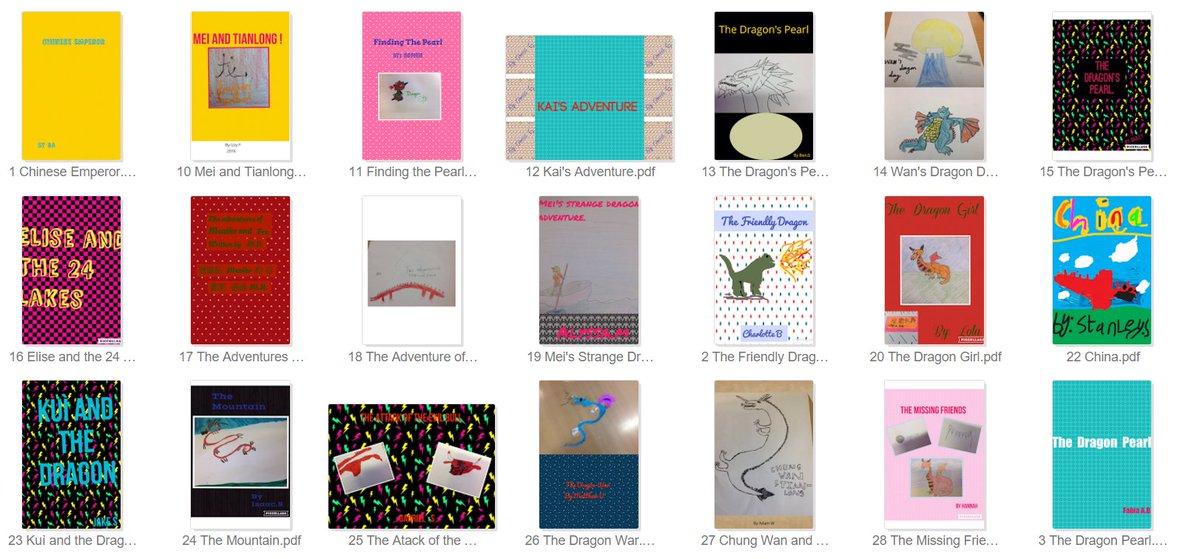
Publishing to iBooks

We've been aware, for a long time, of teachers publishing their work via iTunes. The work is available for download, looks professional and is easy to access. We've downloaded work by Lee Parkinson, Mark Anderson and others. It's something we aim to do more of too (when we get time to).

More recently, we've become aware of iTunes being used to publish children's work. Our inspiration came from the work by Cormac's class.

In 2015, we tried to get the children's work from one of our classes published to iBooks. But, we failed. Here's why. The children wrote their work in Google Docs. or Word and exported as a PDF that we then converted into an ePub. Apple would not accept this file. We couldn't work out some of the requirements of the uploading process. We gave up a little too quickly.

On a more positive note, here's how me made it work this year and what we'll do in the future...

1. The children all wrote their stories straight into Book Creator. 

2. These stories were then shared to Google Drive as a PDF and an ePub. 

3. The teacher took these from Google Drive (read each one for safeguarding and assessment) and collated them for uploading.

4. Individually, each one was submitted to the iTunes Store using iTunes Producer (only available for Mac OSX). Apple are particular about file sizes and dimensions for ePubs, front covers and page samples - read the requirements.
5. The first book took 2 days to appear live on the store. By the time the last few books were submitted, they were live within hours.


7. The children have enjoyed seeing their work online for others to read. Many have come back with stories about which members of their family read their work and where. It's not the most simple straightforward process, but it's well worth it. And, it gets easier with practise.

Please take a look at our work. Download at least one and let us know what you thought of it. 

Monday, 14 December 2015

Word Classes (Parts of Speech) & Emoji

At the start of December, I shared a lesson I'd carried out with my class utilising the Emoji Keyboard on iPad devices. I've recently done something very similar, but this time with the focus being on word classes (parts of speech).

The emoji symbols give the children a prompt for what they could include in the sentence and next to the emoji is an indication of how that emoji is linked to a word class. In the main, the sentences created were correct. Where errors occurred (adjective / adverb confusion or the wrong noun being used as the subject), it provided the opportunity to address misconceptions. Once children had used my prompts, they were then able to create their own. They had to follow the same process though: create the prompt first and then write the sentences. 

It was interesting to see how children could take the same prompt and create so many different sentences from it.


Wednesday, 2 December 2015

Emojis & Homophones

"Why do they keep using the wrong 'their', why?" That was me on Thursday evening. Marking some writing and in the 50/50 choice between 'their' and 'there' (if a child was simply guessing), it had been used incorrectly far too many times. Result? Need to do something about it...

While planning this week, I happened to have a spare English lesson to do something with and had booked the iPad devices 'to do something English based'. Somehow, the idea of using emojis to practise, teach and show understanding of homophones came to me. In the past, my use of emojis in English lessons have been based upon Lee Parkinson's ideas, so some credit must be given to him and his books. 

On an iPad device, in Pages, I set up a document with some emojis as prompts for sentences. I then uploaded this to my class GAfE Google Drive for the children to download onto their iPad devices and use to complete the task. 


The children needed to write sentences using my prompts, before they were the allowed to generate some prompts of their own. Some of their work can be seen here. 

The emoji keyboard can easily be turned on for iOS, it's also available on OSX. I believe it would also work on a Chromebook and other tablets. I'm unsure of its availability on Windows. 

This lesson engaged and enthused the class to work on and think about their homophone choices. It did not make them homophone experts - there's still some work to do with that...
 
👍

Wednesday, 25 November 2015

Padlet in Reading Lessons

Yeah, Padlet again! I know, anyone would think we've got shares in it! Sorry, it's Liam - he just can't get enough of it. Padlet this and Padlet that...

Another post about something we've done a couple of times in the past, but never got around to blogging about. 

Here's an example of some Padlet group work:


We used the John Lewis Christmas advert 2015 as a focus for our reading lesson and used questions created by Lee Parkinson and shared on his blog. In the lesson, we played the video using QuiteTube and the children worked in groups with the 'scribe' having the iPad device in their hands. The group discussed their answers and then chose what would be submitted as a collective answer to the Padlet wall. 

It also works individually, with children submitting their own answers.


This works best as an independent task initially, followed by some time with an adult afterwards looking at the answers to each question and looking at which answers are right or wrong, which are the best or worst and how a better answer may be made by taking ideas from different children's responses. 


In both of these examples, the answers are made available for the whole class to see, to learn from, discuss, agree/disagree with. Much discussion, refining and explaining of answering technique can be gained from having the responses collected in one place. 

Tuesday, 24 November 2015

Pic Collage Assessments

It's about a year ago that we posted the following Tweet:
We've continued to use this and recently realised we'd not added a blog post about the idea. So, here is is. 

The idea came from reading a Tweet from Lee. Here's what we've done: Children complete their work, or at a point in their work, or at the end, and they take a photograph of it. Then, they pass the tablet containing the photo of their work to a peer, who can offer feedback directly onto the photo in Pic Collage. This could also be done as a self assessment or by an adult. 


The key element of this is that the annotations can be placed directly onto the photograph of the work. In our classrooms, this has proven to be an engaging task for the peer undertaking the assessment and a useful form of feedback for the pupil receiving it back.

Tablets, apps, fonts and colours all add to the engagement and many pupils write more and more useful feedback as a result. Some like to call it 'Camouflaged Learning'.

Tuesday, 10 November 2015

Padlet & Number Talks

Last week, I carried out a Number Talk with my class and needed some of the responses to use at an event with parents. While thinking of a way of capturing the childrens' work (photocopy whiteboards, run around with a camera etc.), an idea came to me. Children carry out their Number Talk as usual, but instead of vocalising their answers and methods, we'd upload them to a Padlet wall. 

If you've not come across Number Talks before, this may be a useful starting point. In brief, the teacher poses a question, that the children answer. Children share their answers and then, in turn, explain how they got to their answer. A range of methods are shown, misconceptions addressed and discussions held. 


Here's what I did:

- I set up a Padlet wall (http://padlet.com/Murphy/5den0yclatx);

- I posed the following question: 236 - 199;

- children calculated the answer using their chosen mental or written strategy;

- children uploaded an anonymous answer to the Padlet wall.

I then projected the responses and, in turn, we looked at each answer and the method used to arrive at that answer. The anonymous responses allowed a slightly more blunt discussion about the methods used, but naming responses would also have benefits.  

There you go, another post about maths and another that involves Padlet!


Sunday, 6 September 2015

The Backwards Video Task

Last year, we wrote about 'Television - Beaming Ideas into your Livingroom!' We'll, the TV watching has come up trumps once again... 

While watching Taskmaster on Dave, I saw the following task being carried out by the contestants (audio not appropriate for a primary school classroom):


The concept is brilliant. Film something, that is impressive when watched in reverse. Below is the video we came up with...


As part of our start of year; group work, English teaching and getting to know equipment activities we gave the children in Year Five this same task. They worked in groups, thought about and planned their video before then going through the technological steps to complete the task.


An example of the planning sheet is below and some of the finished examples can be viewed here.


For our implementation of it, we used iPad devices to film, iMovie app to edit and Reverser - Backwards Video Maker with Reverse Cam app to reverse the video. If we find other ways of reversing videos, we'll update this post.


Monday, 31 August 2015

Math Duel League

In 2014, Lee Parkinson wrote an iBook to share ideas for iPad device use during the Football World Cup. This blog post builds upon one of Lee's ideas in that book. Incidentally, all of Lee's books are very useful (for both Apple and Android devices) and can be found both here and here. 

 Image credit: Lee Parkinson

In the book '15 iPad Lessons for the World Cup' Lee outlined an idea for using the Math Duel app in class to improve maths skills through a bit of healthy competition. This year, I plan to build upon this with the Math Duel League...

This is an idea I've been playing around with for a while and hope will work. I imagine it'll take a bit of tinkering with, and as I do, I'll update this post. As I'm writing the post before trying it out, any suggestions others have are most welcome.

We're in school for thirty odd weeks during the year and I have thirty children in my class. This is where the idea started. How about each child playing another child each week through the year and then, at the end of the year, have a completed league table. 

- Each child must play each other child 'home' and 'away' during the year. A copy of the class list for each child to tick off as they go will be useful for this.

- 'Home' is the child sat in their usual class seat. The 'away' child moves to sit with them. The child at 'home' inputs the settings (there needs to be a fair play agreement here). They then play their game.

- On Google Drive, there'll be a spreadsheet for children to input results into and the table can be created from this. The children will be able to access the Google Drive document from the iPad device once their game has finished. 

My main concern using thinking about this has been about the children who may finish bottom of the league. I'll not share the whole league table with the class. The 'home' and 'away' and the 'home child' being in charge of the settings should enable all children to win some games. Another thought was about handicaps based upon head starts or giving children certain times tables to work on. 

Image Credit: Ellie's Games


I'll give it a go and see how it goes...