Showing posts with label technology. Show all posts

Tuesday, 30 April 2019

Disney in French

I have two toddler daughters. In recent years, I've become very familiar with the plots, characters and songs of 'Beauty and the Beast' and 'Frozen' in particular. One day last week, one daughter wanted to dance to 'Build a Snowman'. So, I searched for it on my phone. For some reason, the French version came up. It struck me that this could be another way to access a language in a classroom. A hook, a stater, game or just for a bit of fun...

La Reine des Neiges - Je voudrais un bonhomme de neige


Friday, 15 March 2019

Bonza Vocabulary

A few weeks ago, I came across an app. Bonza is its name. Cheers Alex for the Tweet about it. So, it's a word game. The parts of the puzzle need to be put back together to form a crossword. Before the puzzle comes up, there is a hint as to what the puzzle's topic may be.


Gave the game a go. Enjoyed it. Thought about uses in school. After investigating the app a little, found it is rated 12+ due to some of the vocabulary and subject content within the app. However, here are some ideas for using Bonza and/or Bonza-style puzzles in class...


1. Create a puzzle and then project to a screen from your own device. Complete the puzzle together. We've blogged about this approach in the past.

2. Create a puzzle and print it out to be cut and stuck, or the answers written out.

3. Create a puzzle and the. Recreate it in Word, PowerPoint or similar.


What could the puzzles be about? A spelling rule, verb tenses, topic-based vocabulary, revision and, well anything that involves words really.

Another tool to add a bit of variety to a classroom and learning. Age rating of the app just a tad irritating. NB, puzzles can only be completed in the app and not through a browser either...


Here's one I made to go with our Year Five's rivers topic (also pictured above).

Thursday, 26 April 2018

Augmented Reality with Motion Stills

This week, I've found the Motion Stills app by Google.

It does three things:
- AR Mode
- Motion Still
- Fast-Forward

The 'Motion Still' takes a 4 second (I think) video/gif that will play and keep repeating. A rather contemporary way of recording video that the pupils should relate to. There are numerous ways this short video could be used in class...

The 'Fast-Forward' does exactly what it says. Easy way to record something and then have it sped up without having to involve editing software. 

The 'AR Mode' is the new addition to the app and the one I see being most useful. Augmented reality has been around for a little while now. I'm amazed by it, but Skype amazes me too! The thing about augmented reality that's brilliant is that whenever I've used it in class, it has enthused the children. They know what they are seeing is not real and I know it too. But it's like its real and we can all enter that imaginary world through the augmented reality and pretend we're there. The AR Mode includes: a dog, spaceship, heart, basketball, spider, dinosaur, chicken, alien, gingerbread man, globe and a robot.


I've been having a play. While me mam was eating her dinner and 'finding' bugs on the kitchen floor.


I can see this being a really useful writing prompt too, or for creating a story sequence, or any other ideas you may have...  

The gif or video can easily be exported to many apps for #AppSmashing or as a finished product. 


Saturday, 10 September 2016

Tuesday, 12 April 2016

Friday, 8 April 2016

WordsEye

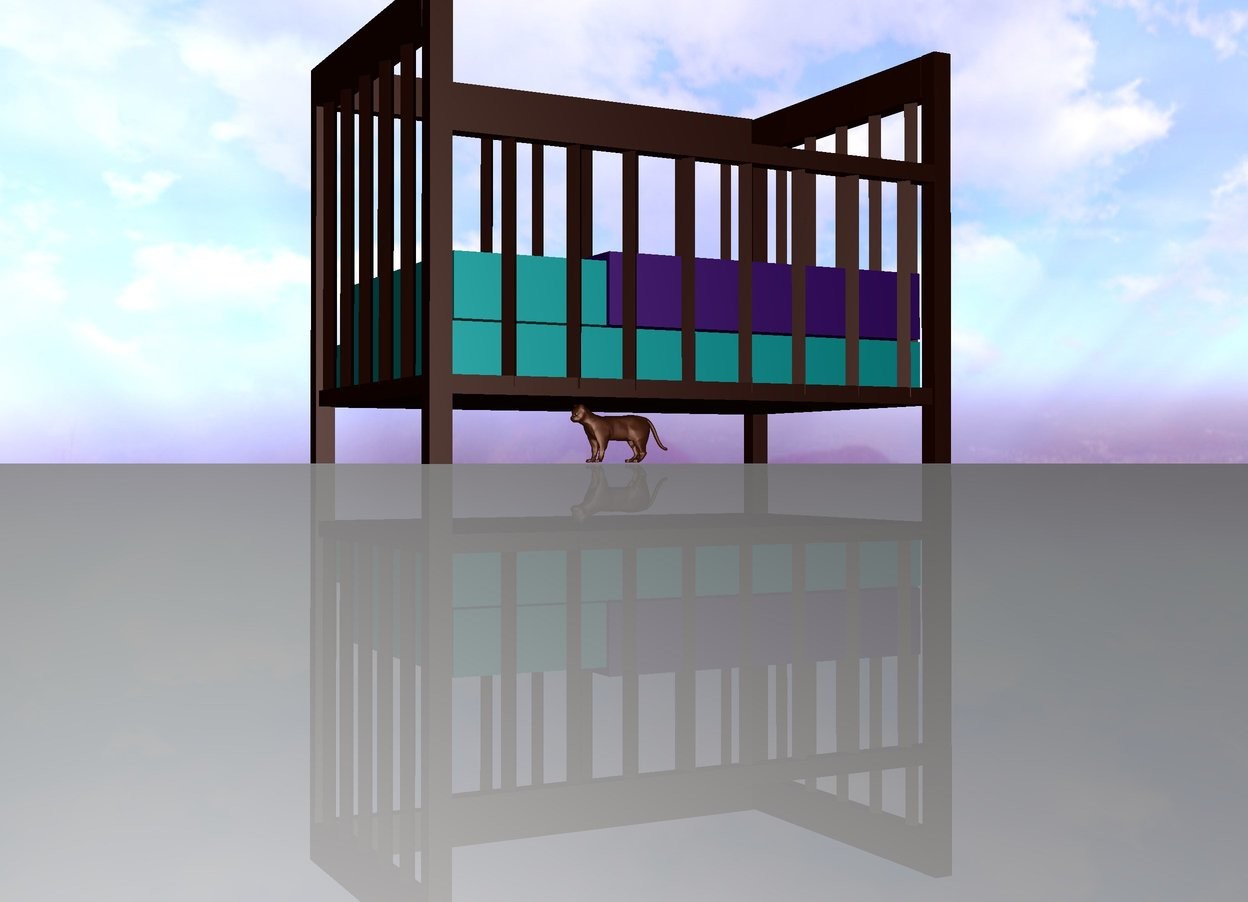
At the time of writing, WordsEye is currently in Beta. "WordsEye lets you type a picture! Create 3D scenes simply by describing them and share your creations with friends."


Type a sentence into WordsEye and it creates a picture of that sentence. The image above is based upon the sentence, "Cat under the large bed."

Current ideas for use of the pictures: prepositions, adjectives, determiners and story prompts.
Prepositions - display the picture and ask children to describe the relationship between the nouns pictured.

Adjectives - describe the picture to someone else.

Determiners - create a picture with a number of objects in and use determiners to pick out one or more of them.

Story prompt - create or use someone's picture and write a story based upon it.

We see this being used as a teacher's resource and not children. UPDATE: WordsEye contacted us to tell us about their "educationportal". Click here for details. Got some more ideas for uses? Let us know.

Friday, 26 February 2016

Mystery Skype with the Family

I've know about Mystery Skype for some time and it's been one of those things I've wanted to do and not got round to (until now). I'd contacted other teachers, via Twitter, and tried to arrange times, but often - for various reasons - it didn't work out.

 Image credit: http://twitter.com/Skype

A Friday recently, I was in school and I knew that before lunch we would have about half an hour of spare time. So, I got my phone out and via the wonders of Whatsapp, contacted my sister (in Sydney). One hour later, we were Mystery Skyping my sister, sat in her apartment in Australia trying to guess where in the world she was. We asked questions. She replied either 'yes' or 'no' and eventually we worked out her location. She then showed us the clock in her room, the harbour, the lit up bridge and the dark outside, lots of dark - oh and a thermometer for temperature comparison. A fantastic half an hour that captivated my class. I intend to carry out my Skype link ups as Mystery Skypes (with other classes and friends & family) and as general chats or information sharing/gathering. 

Got a friend or relative in another country? Mystery Skype them! 

Monday, 31 August 2015

Math Duel League

In 2014, Lee Parkinson wrote an iBook to share ideas for iPad device use during the Football World Cup. This blog post builds upon one of Lee's ideas in that book. Incidentally, all of Lee's books are very useful (for both Apple and Android devices) and can be found both here and here

 Image credit: Lee Parkinson

In the book '15 iPad Lessons for the World Cup' Lee outlined an idea for using the Math Duel app in class to improve maths skills through a bit of healthy competition. This year, I plan to build upon this with the Math Duel League...

This is an idea I've been playing around with for a while and hope will work. I imagine it'll take a bit of tinkering with, and as I do, I'll update this post. As I'm writing the post before trying it out, any suggestions others have are most welcome.

We're in school for thirty odd weeks during the year and I have thirty children in my class. This is where the idea started. How about each child playing another child each week through the year and then, at the end of the year, have a completed league table. 

- Each child must play each other child 'home' and 'away' during the year. A copy of the class list for each child to tick off as they go will be useful for this.

- 'Home' is the child sat in their usual class seat. The 'away' child moves to sit with them. The child at 'home' inputs the settings (there needs to be a fair play agreement here). They then play their game.

- On Google Drive, there'll be a spreadsheet for children to input results into and the table can be created from this. The children will be able to access the Google Drive document from the iPad device once their game has finished. 

My main concern using thinking about this has been about the children who may finish bottom of the league. I'll not share the whole league table with the class. The 'home' and 'away' and the 'home child' being in charge of the settings should enable all children to win some games. Another thought was about handicaps based upon head starts or giving children certain times tables to work on. 

Image Credit: Ellie's Games


I'll give it a go and see how it goes...

Sunday, 23 August 2015

Tips For Tablet (iPad) Use

Ten tips for using tablets in the classroom... 


1. Desensitise - The term came from Sway. However, it's something that I've always done with each class as we use the devices for the first time. The touch screen on any device takes some getting used to. How hard should a tap be? which directions can be swiped in? what multi-finger gestures can be used? This will possibly become less important as touch screen technology becomes the norm.

2. Prediction - When typing, the predictive element can cause typos or (depending on spelling ability) incorrect substitution of words. Schools need to decide what predictive text is turned on or off and ensure the children are able to utilise it properly. I'm still to get to gripes [sic ;-)] with it!

3. Copy & Paste etc. - Ensure children know how to select a work, or a section of text and then cut or copy it before pasting it somewhere else. Indeed, the same with images. This is essential if any App Smashing is to take place.

4. Orientation - filming / photography - If footage or images are going to be edited together as part of a film, as a minimum, ensure they're all captured in the same orientation. Ideally, do them all landscape. It works much better in modern widescreen outputs.

5. Microphone - Do the children know where the microphone is? For example, on the iPad Mini it's at the top, not the bottom like a phone (most phones). Sound is much better when directed towards the microphone. Particularly in a classroom, with say 29 other children doing similar...

6. Sharing between apps - App Smashing! Sometimes copy and paste works just fine, but sometimes saving to 'Camera Roll' or 'Gallery' may be required to then input the object into another app. Theach this once and it'll then be useful over and over again!

7. App missing? How to put it back - "Sir, I don't have the app!" Often this can easily be resolved (dependant on management system in place) if children know how to. Not installing apps, not buying them, just putting one back that's for some reason gone missing.

8. Search - At the time of writing, only know of this on iOS (happy to update if told different). Instead of scrolling through looking for an app, swipe down in the middle of the screen and type in the app's name - it'll then appear. If I set up an iOS device for my use in the future, I'll not set up any folders, for me all I need is the search.

9. Turing off apps - Saving the battery. Tablets that charge over night? Used five hours a day by children? Let's make sure they make it. Double tap home button (iOS) or hold home button (Android) to see which apps are running. On iOS, swipe each to turn off, but (wait for it) on Android, press the 'close all button' :-). This will save battery power.

10. It is not a rock - They break. Two hands! Don't throw! It's not yours. You get the idea.

Friday, 17 April 2015

Apps for Your Primary Classroom XII

Our 12th post about apps we've made use of, that others may like to try too. The other posts can be found here.
PhotoFunia
SpellFix
TypeDrawing  *  
Word-Juice
Math Shake
MultiFlow
TEN SUM

SCIENCE
ID Weeds
mySoil


* These apps are included here after reading about suggestions for their use in '50+ iPad Lessons for Exciting Sentences' by Alan Peat and Lee Parkinson. Having used this book in our school, we happily recommend it. In the book, it gives detailed, interesting and innovative ideas for using the apps above and more in the classroom. Our classes have enjoyed these activities and improved their writing attainment as a result of its purchase.


Image credit: www.alanpeat.com

Sunday, 22 March 2015

Uses For AirServer

We have iPad devices and have chosen to purchase AirServer to display them on interactive projections in our school. What is written below, will also with with other devices and other mirroring software.


1. Mobile visualiser: The teacher, a child or other adult in the classroom can walk around with the tablet device (with its camera turned on) and then use it as a visualiser to display objects, work or demonstrations onto the board for all the class to see. In addition to the camera, this app from Alan Peat is designed for this very purpose.

2. Model an app before children use: If the children are to use an app, the teacher (or indeed a child) can demonstrate an app on the projection for all to see.

3. Run through a presentation while on the move: Present from the tablet device to allow the teacher to not be stuck at the front of the room. Children can then also interact from their seats.

4. Begin your lesson remotely: Going to be late to a lesson? Start the input while you make your way in.

5. Show children's work: As the teacher walks around the room, put the camera on and show good examples of what's going on in the room. Or, even work that needs improvement.

6. Annotate work: As mentioned in idea 2, annotate, as a class, directly onto a child's work.

There are also many more uses. If you want to share any, please comment below. 

Image credits: www.airserver.com 

Saturday, 1 November 2014

School Twitter Account (Part 4)

Our fourth post about school Twitter accounts. Click to view: Part 1, Part 2 or Part 3
Image credit: www.twitter.com

This time, it's 'locked' versus 'unlocked'. The opinions here could apply to school accounts as well as personal/professional accounts. When we joined Twitter, we applied the lock to our accounts. Being familiar with other social networks, we wanted to ensure our safety was secure. However, in order to make the most of the social network, we soon removed the lock. If you need the lock, then keep it. But...

Removing the lock allows contributing to discussions via hashtags, users to follow Tweets without having to join Twitter and for easier communication between users. If an account is sharing no personal information, nothing sensitive and nothing 'you wouldn't want the world to see', then there's no reason for it to be protected. We'd like to think this applied to all school and teacher accounts. It's also worth remembering that a Tweet from a locked account can still be shared by copying the text and any 'trusted' follower of a locked account could, in theory, copy and share photos or other information. Use an unlocked account and don't share anything that you wouldn't want anyone to see or read. If you've got the lock applied, consider breaking free.

Saturday, 10 May 2014

Ninth Collection of Apps for Your Primary Classroom

Another bunch of apps that we've given a go in our primary classrooms. We've found them useful and others may do too. Links are to the Apple App Store as we are operating iOS devices.
Image credit: www.apple.com

E-SAFETY
GENERAL
MATHS


LITERACY